
I’d love to have my own logo, but can’t afford to hire a designer. Can you recommend a cheap online alternative?
Camille from SearchMann was looking for a way to set up her own logo which she could use on business cards and other print stationary and asked me for some way she could do this without going through the expense of commissioning a graphic designer. Well, it turns out that logo design isn’t as hard as she thought. I found an online service called LogoYes that’s a quick and extremely flexible way to play with some ideas and come up with a logo you can use. They can even take it a step further and create business cards for you with your logo. Buying the print quality files and a bunch of business cards will cost you less than $100 (around £50) and you can reuse the logo on all your print stationary and even online.
So, let’s walk through how you create your logo, just so that you can see how simple the process is. (Note that the pictures below are thumbnails, you can click on them to see the step in greater detail.
Go to the LogoYes website.
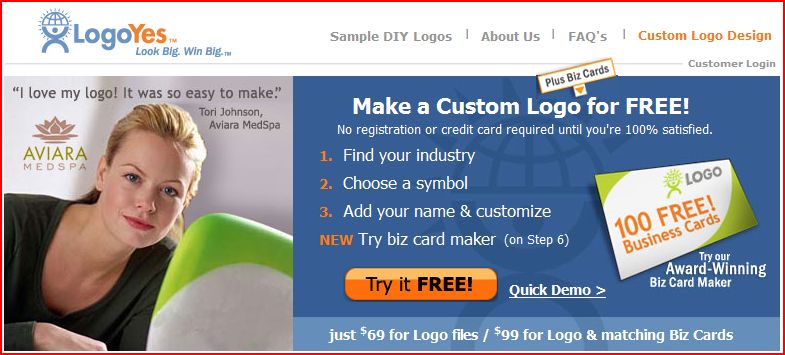 You’ll see some material about how the site works and the advantages of using their services to create your logo. Go ahead and click on Try it Free to start off the creation process
Step 1: Choose your Logo Type
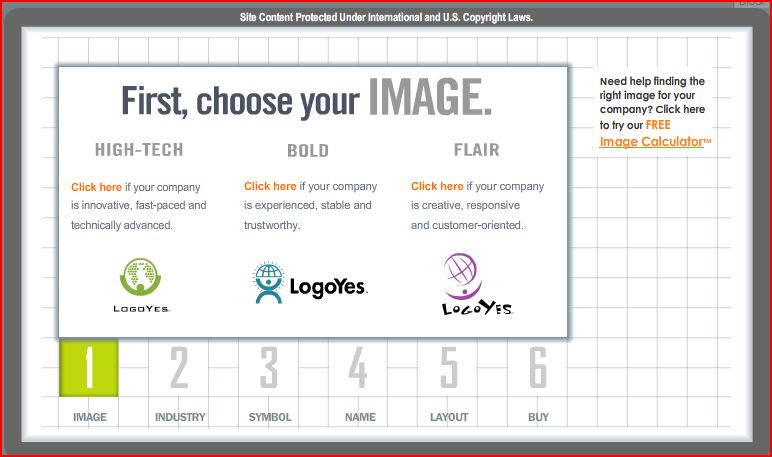 The first step is to choose the type of logo you are after. You have a choice of High-tech, Bold and Flair. You should choose the type that matches the image you would like to project of your company or service, as this will then give you a selection of different images that match the type you selected.
Step 2: Choose your Industry
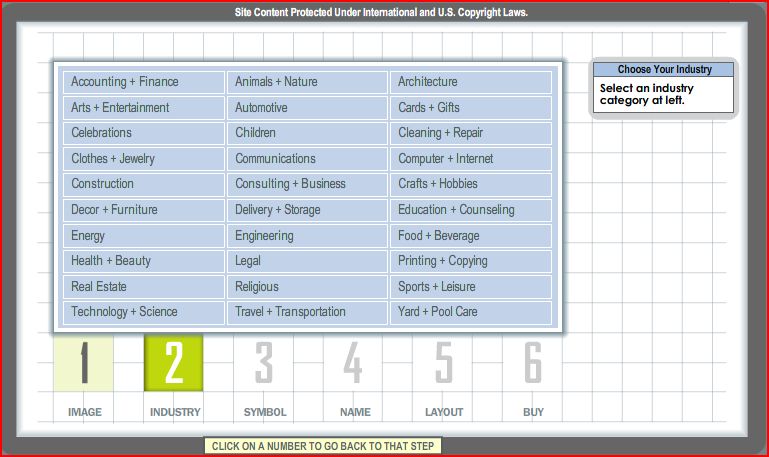 The next step is to choose the industry you work in. This will help the wizard present you with a selection of images that match the type of work you do, and get the match as close as possible. So, go ahead and select the industry that most closely matches the field you are in.
Step 3: Select your symbol
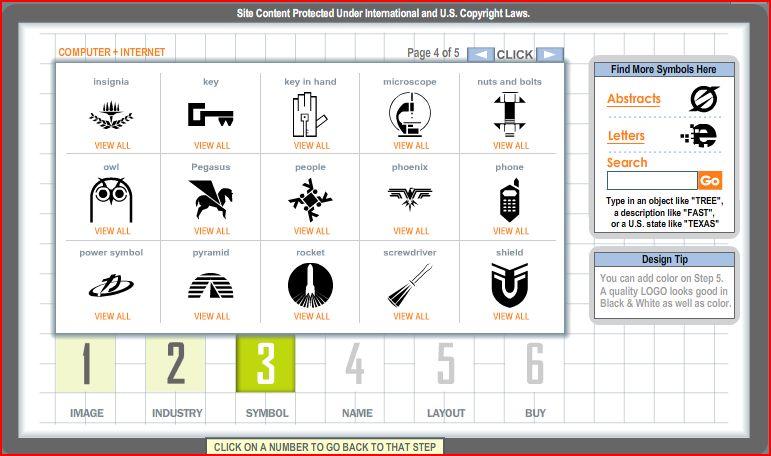 The next step is to select a symbol for your logo. The wizard has thousands of different graphics that can be used on your logo, so this stage will help you select the one you want to use. It uses your industry and type selections to come up with an initial set, but you can always search for an image type if you are after something specific. Take your time in selecting your image as there are lots of choices to go through.
Step 4: Add your business name
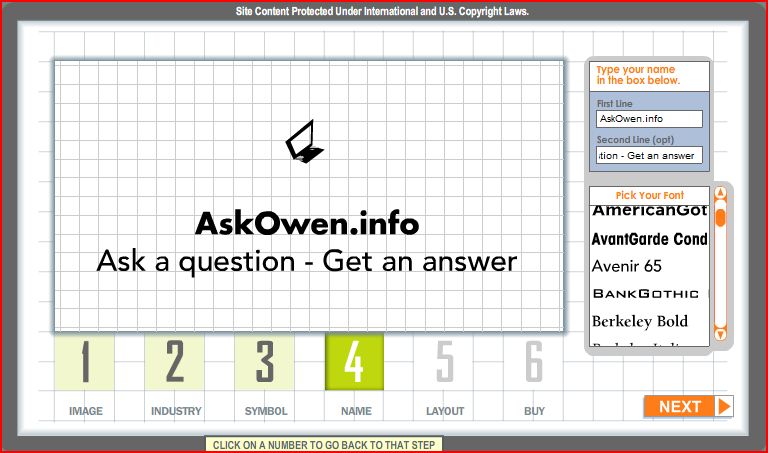 This step lets you type in your business name and an optional caption for your logo. You can type in the details and select what font you would like for each line. Don’t worry too much about the formatting at this stage, just specify the text and font to use and click Next.
Step 5: Set up your layout
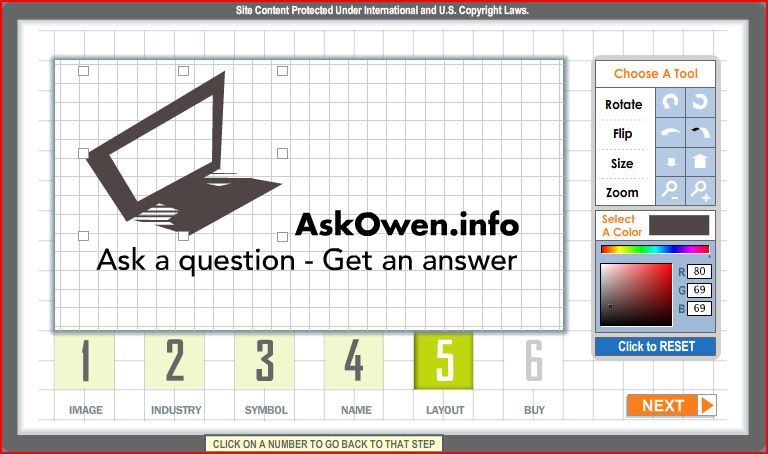 This is where you can let your creative juices run loose. You can now move your image and text around, change colours and perform all sorts of manipulation on the logo. You can drag, resize, rotate and flip different elements around the logo, to make it just as you would like it. Just click on the element you would like to change (text or image) and click the palette or toolbar on the right to make your changes.
Step 6: You’re done!
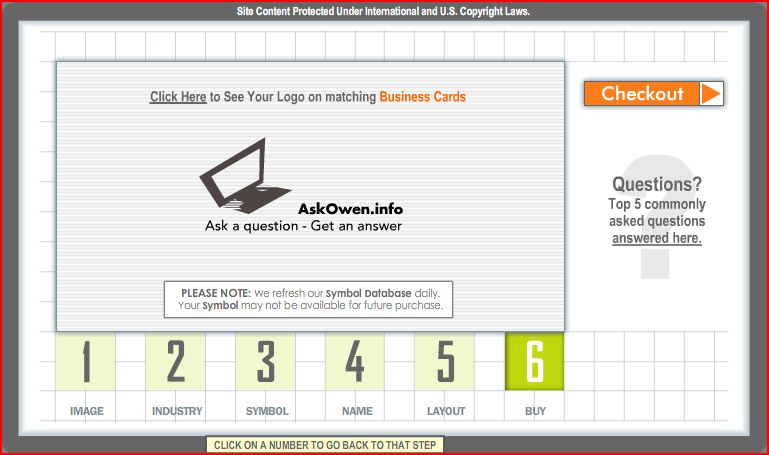 Step 6 shows you a preview of what your logo will look like. If you don’t like any part of it, you can go back to any part of the wizard by clicking on the step numbers at the bottom of the screen. If you’re pleased with what you’ve done you can click on Checkout to go ahead and buy the print quality files you would need to give your printer to produce your cards. Alternatively, you can use the website to make business cards too. If you click the caption that says See your logo on matching business cards, you’ll be taken down another couple of steps to create you business cards.
Business Card Preview
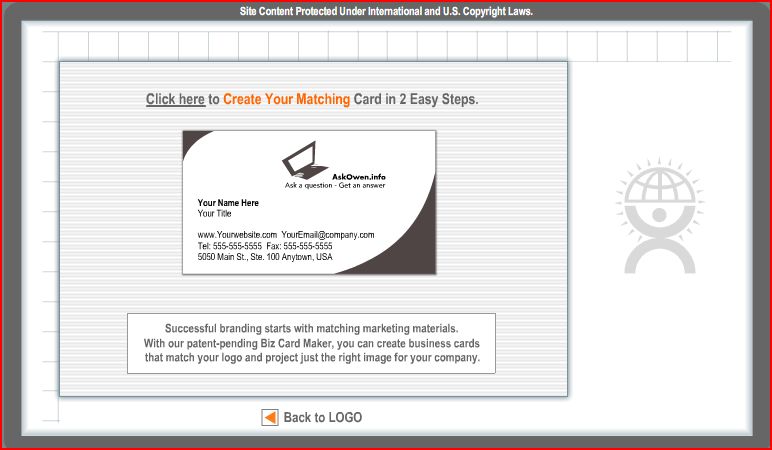 The website will now show you a preview of what your business cards could look like. This screen will cycle through a number of different options to show you some options that are available to you. Click on Create your matching cards in 2 easy steps.
Business Card Options
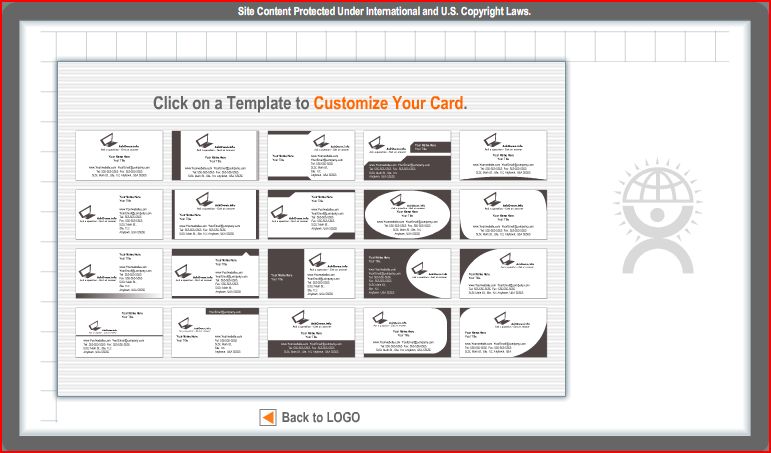
This screen shows you a number of options for creating business cards. You are presented with a number of templates that you can use. Running your mouse over each one will zoom into that template to show you what it would look like. Take some time to go over the different options and click on the one you want to use.
Complete you Business Card
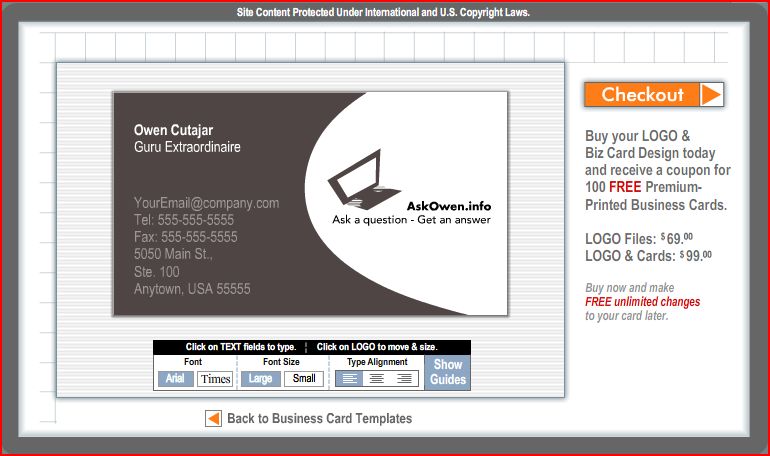 The final step in creating your business card is to specify your business address, phone number and all the corresponding details. Just click on the text you want to amend and key in the correct details. It’s as simple as that! You can also change fonts, alignments and point sizes to make your business card exactly the way you like it. Once you’ve completed this step, just click on Checkout to conclude the process and buy your business cards.
That was pretty simple wasn’t it. Here’s a business card I created for this website:

It took no time at all, and I was amazed at the flexibility the website offers when it comes to different options and selections. I told you logo design isn’t that hard 😉 So go ahead, create your own logo.
Once you have created your logo, you can apply your logo as watermarks on your site’s photos by using this free online version of batch watermarker:
http://www.ivertech.com/freeOnlineWatermarker/freeOnlineWatermarker.aspx
You don’t have to download any software to apply your watermark and it’s completely free!
Very good info for those who don’t want to spend money for their branding or who need a nice free logo. Thanks for sharing this info.